by
by 
In this guide, you’ll learn how to change password in Kali Linux using the terminal, graphical interface, and even from recovery mode if you’re locked out. Keeping your Kali Linux system secure starts with a strong password. Whether you forgot your password, want to update it for security reasons, or need to change another user’s password, Kali Linux provides multiple ways to do it.
Why You Should Change Your Kali Linux Password
Changing your password regularly helps to:
- Protect your system from unauthorized access
- Improve security after installing Kali
- Prevent brute-force and dictionary attacks
- Secure systems used for penetration testing
Kali Linux is often used in security-critical environments, making password hygiene essential.
Change Password in Kali Linux Using Terminal
This is the most common and recommended method.
Open Terminal
Press:
Ctrl + Alt + T
Run the passwd Command
passwd
Enter Your New Password
- Enter your current password
- Type the new password
- Confirm the new password
If successful, you’ll see:
password updated successfully
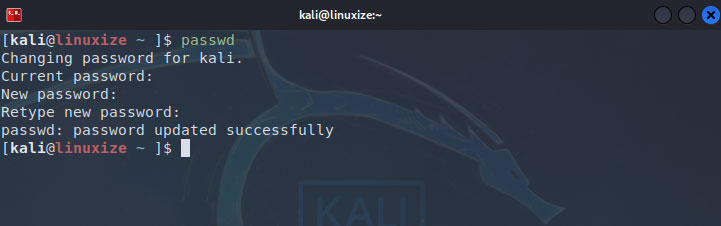
This changes the password of the currently logged-in user.
Change Root Password in Kali Linux
If you are logged in as a regular user and want to change the root password:
sudo passwd root
You’ll be prompted to enter and confirm the new root password.
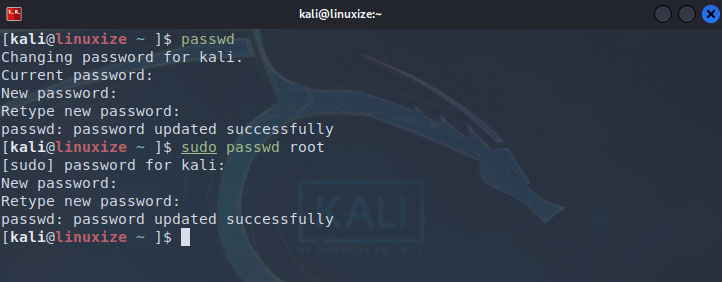
This is useful when you actively use the root account for administrative tasks.
Change Another User’s Password in Kali Linux
To change another user’s password, you must have sudo or root access.
sudo passwd username
Replace username with the actual user name.
Example:
sudo passwd kaliuser
Change Password Using GUI (Desktop Method)
If you prefer a graphical interface, follow these steps:
- Open Settings
- Go to Users and Groups
- Select your user account
- Click Password
- Enter the new password and save changes
This method works on XFCE, GNOME, and KDE desktop environments.
Reset Forgotten Kali Password (Recovery Mode)
If you forgot your Kali Linux password, you can reset it using recovery mode.
Reboot the System
Restart Kali Linux.
Open GRUB Menu
Hold Shift (BIOS) or Esc (UEFI) during boot.
Edit Boot Entry
- Select Kali Linux
- Press e
- Find the line starting with linux
- Replace:
ro
with:
rw init=/bin/bash
Press Ctrl+X or F10 to boot for a comman-line
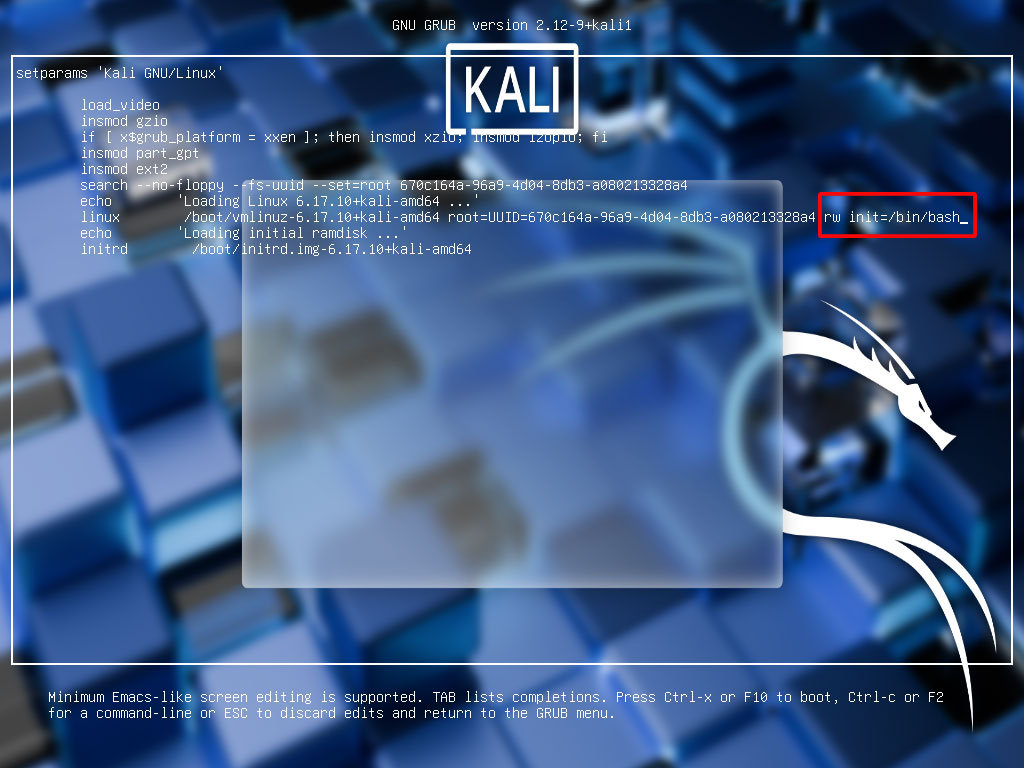
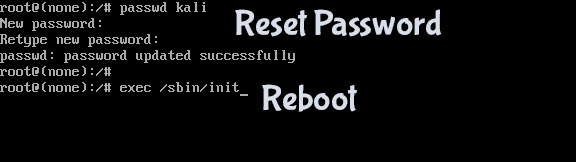
Reset Password
passwd
Reboot
exec /sbin/init
Your password will now be reset.
Physical access to the system is required for this method.
Conclusion
Changing your Kali Linux password is quick and essential for maintaining system security. Whether you use the terminal, GUI, or recovery mode, Kali provides flexible options for all situations.
Regular password updates ensure your penetration testing environment remains secure and protected from unauthorized access.