by
by 
In this guide, you’ll learn how to install GNOME Desktop Environment in Kali Linux, switch between desktop environments, and set GNOME as the default desktop. Kali Linux comes with Xfce as the default desktop environment because it is lightweight and fast. However, many users prefer GNOME Desktop for its modern interface, smooth animations, and powerful features.
What is GNOME Desktop?
GNOME (GNU Network Object Model Environment) is a popular desktop environment used by many Linux distributions such as Ubuntu and Fedora. It offers:
- Modern and clean UI
- Touchpad and touchscreen friendly design
- Strong accessibility features
- Excellent Wayland support
System Requirements
Before installing GNOME, make sure your system meets these minimum requirements:
- Kali Linux (latest version recommended)
- At least 2 GB RAM (4 GB recommended)
- Minimum 10 GB free disk space
- Active internet connection
Update Kali Linux System
Always update your system before installing any new desktop environment.
sudo apt update && sudo apt full-upgrade -y
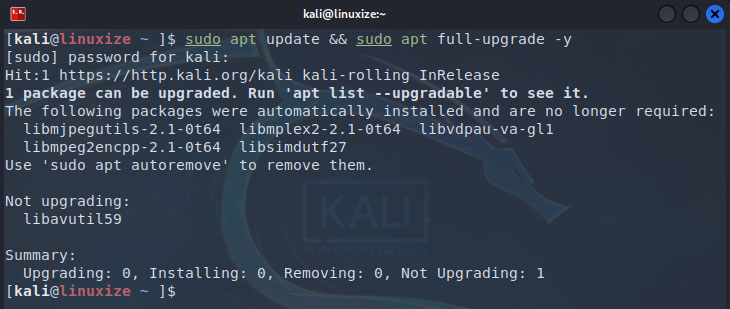
Reboot if the kernel or core packages were updated.
sudo reboot
Install GNOME Desktop in Kali Linux
There are two ways to install GNOME. Choose one based on your needs.
Method 1: Install Full GNOME Desktop (Recommended)
This installs the complete GNOME experience with all standard tools.
sudo apt install kali-desktop-gnome -y
✔ Best for daily use
✔ Includes GNOME apps and utilities
Method 2: Install Minimal GNOME Desktop
If you want GNOME without extra packages:
sudo apt install gnome-core gdm3 -y
✔ Lightweight
✔ Suitable for low-resource systems
Choose Display Manager (GDM)
During installation, you may be prompted to choose a display manager.
gdm3
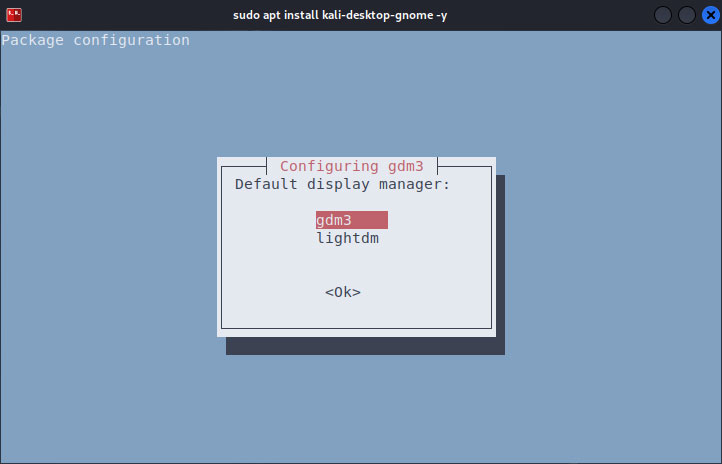
Use Tab → Enter to confirm.
GDM (GNOME Display Manager) is required for the best GNOME experience.
Reboot Your System
After installation completes, reboot your system.
sudo reboot
Select GNOME Desktop at Login
- At the login screen, click the gear icon ⚙️
- Select GNOME
- Enter your password and log in
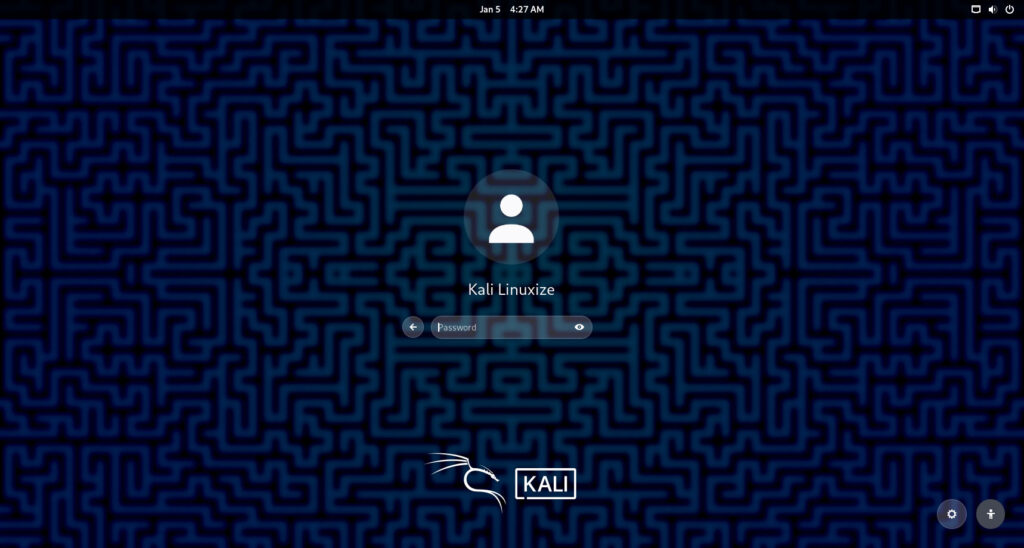
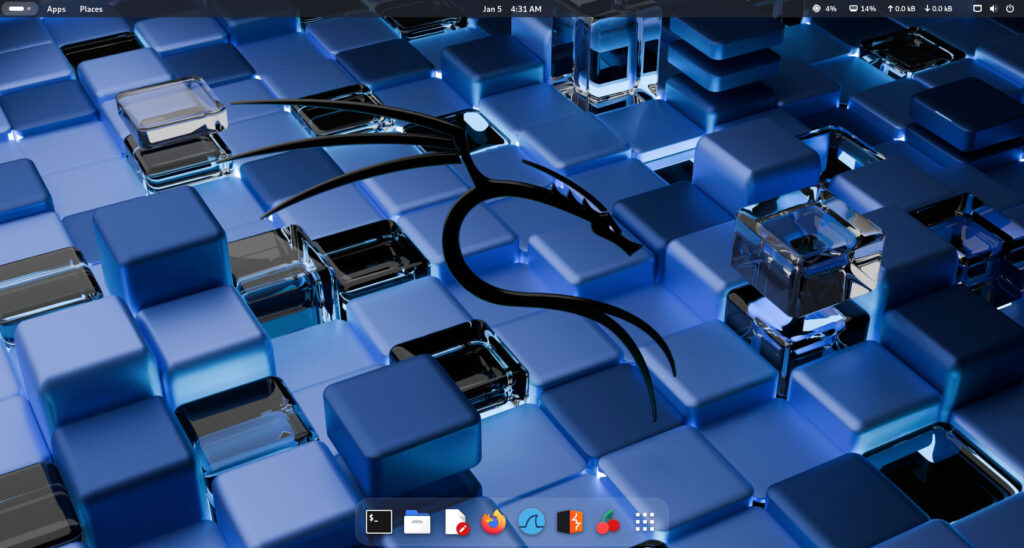
You are now using GNOME Desktop on Kali Linux!
Set GNOME as Default Desktop (Optional)
To ensure GNOME loads every time:
sudo update-alternatives --config x-session-manager
Choose:
/usr/bin/gnome-session
Verify GNOME Installation
Check your desktop environment:
echo $XDG_CURRENT_DESKTOP
Output should be:

Switching Between Desktop Environments
If you have Xfce, KDE, or other desktops installed, you can switch anytime from the login screen using the gear icon.
Remove GNOME Desktop (Optional)
If you want to remove GNOME later:
sudo apt remove kali-desktop-gnome gnome* -y
sudo apt autoremove -y
Switch back to Xfce:
sudo apt install kali-desktop-xfce -y
Conclusion
Installing GNOME Desktop in Kali Linux gives you a modern, smooth, and powerful desktop experience. Whether you’re a beginner or a professional penetration tester, GNOME enhances productivity and usability.
If you prefer aesthetics and advanced features over lightweight performance, GNOME is an excellent choice.