by
by 
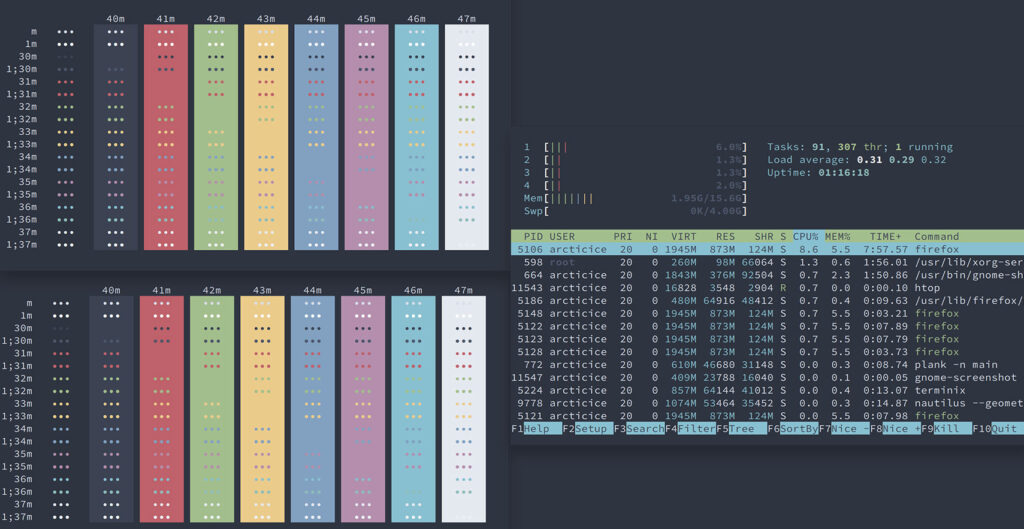
This guide shows step-by-step how to install the Nord theme in Terminator on Kali Linux. The Nord theme is a popular, eye-friendly color scheme known for its cool blue tones and excellent readability. If you’re using Terminator Terminal in Kali Linux, applying the Nord theme can greatly improve your terminal experience—especially during long working sessions.
What is Nord Theme?
Nord is a modern color palette designed for:
- Low eye strain
- High contrast readability
- Long terminal usage
It is widely used in terminals, editors, and Linux desktops.
Install Nord Theme in Terminator
Create Terminator Configuration Directory
First, make sure the Terminator configuration directory exists:
mkdir -p ~/.config/terminator
Create or Edit Terminator Config File
Open the Terminator configuration file:
nano ~/.config/terminator/config
If the file is empty, add the following content:
[global_config]
[keybindings]
[profiles]
  [[default]]
    background_color = "#2E3440"
    background_darkness = 0.88
    font = Monospace 11
    foreground_color = "#D8DEE9"
    show_titlebar = False
    scrollbar_position = hidden
    scroll_on_keystroke = False
    scrollback_infinite = True
    palette = "#3b4252:#bf616a:#a3be8c:#ebcb8b:#81a1c1:#b48ead:#88c0d0:#e5e9f0:#4c566a:#bf616a:#a3be8c:#ebcb8b:#81a1c1:#b48ead:#8fbcbb:#eceff4"
    use_system_font = False
[layouts]
 [[default]]
  [[[window0]]]
    type = Window
    parent = ""
[[[child1]]]
  type = Terminal
  parent = window0
[plugins]
Save and exit:
- Press CTRL + O → Enter
- Press CTRL + X
Verify Nord Theme is Working
Once applied, you should close the terminal and see:
- Dark blue background
- Soft white text
- Calm and consistent color contrast
This confirms the Nord theme is successfully enabled in Terminator.
Conclusion
Installing the Nord theme in Terminator on Kali Linux is simple and highly recommended. It enhances visual clarity, reduces fatigue, and makes your terminal look modern and professional.