by
by 
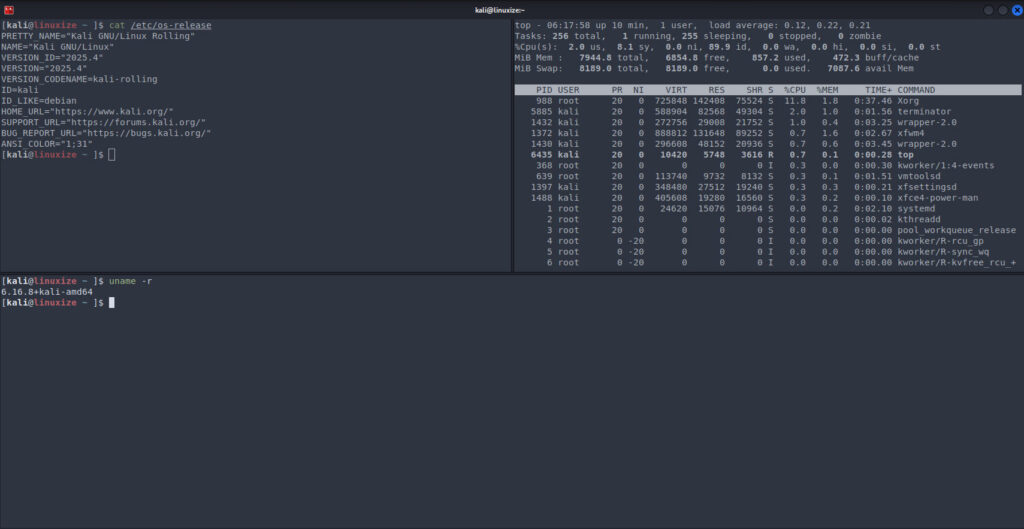
In this complete guide, you’ll learn how to install and use Terminator Terminal in Kali Linux, along with basic configuration tips to boost your workflow. Kali Linux comes with several powerful tools, but when it comes to terminal productivity, Terminator stands out. Terminator allows you to split your terminal window into multiple panes, run different commands simultaneously, and manage sessions efficiently—all within a single window.
What is Terminator Terminal?
Terminator is an advanced terminal emulator for Linux that lets you:
- Split terminals horizontally and vertically
- Run multiple shell sessions in one window
- Customize layouts, fonts, and colors
- Save time when working on servers, pentesting, or development tasks
It is especially useful for Kali Linux users, penetration testers, system administrators, and developers.
Prerequisites
Before installing Terminator, make sure:
- You are using Kali Linux
- You have a user account with sudo privileges
- Your system is connected to the internet
Update Kali Linux Packages
It’s always a good practice to update your package list before installing new software.
Open your terminal and run:
sudo apt update
(Optional but recommended)
sudo apt upgrade -y
Install Terminator Terminal
Terminator is available in Kali Linux’s official repositories.
Run the following command:
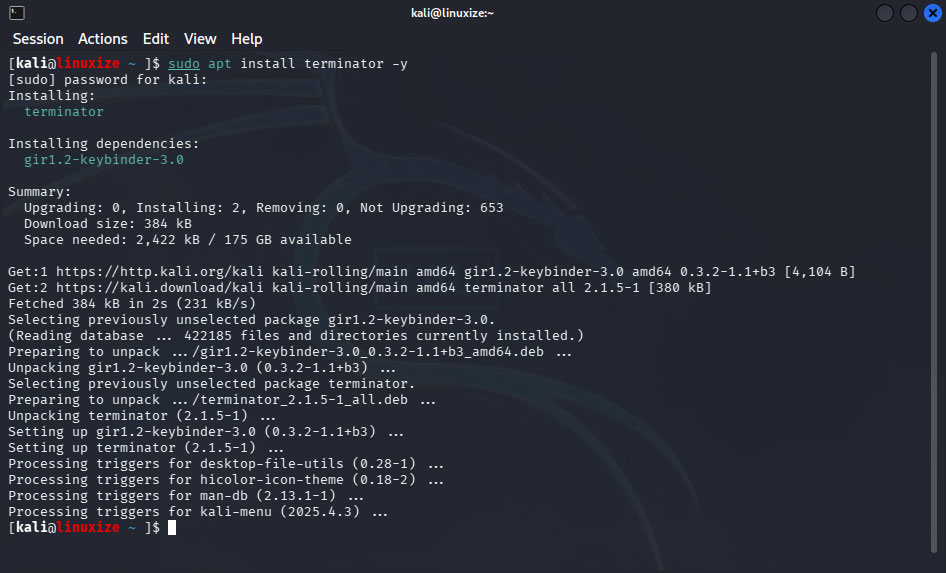
sudo apt install terminator -y
Once the installation completes, Terminator is ready to use.
Launch Terminator in Kali Linux
You can start Terminator in two ways:
Method 1: From Terminal
terminator
Method 2: From Application Menu
- Click on Applications
- Search for Terminator
- Click to launch it
Basic Terminator Keyboard Shortcuts
Here are some essential shortcuts to get started quickly:
| Action | Shortcut |
|---|---|
| Split Horizontally | Ctrl + Shift + O |
| Split Vertically | Ctrl + Shift + E |
| Close Current Terminal | Ctrl + Shift + W |
| Move Between Terminals | Alt + Arrow Keys |
| Full Screen | F11 |
| Preferences | Right-click → Preferences |
These shortcuts make Terminator extremely powerful for multitasking.
Configure Terminator (Optional)
To customize Terminator:
- Right-click anywhere inside the terminal
- Select Preferences
From here, you can:
- Change font style and size
- Modify color schemes
- Enable or disable scrollbars
- Customize keybindings
- Create profiles for different tasks
Remove Terminator (If Needed)
If you ever want to uninstall Terminator:
sudo apt remove terminator -y
To remove configuration files as well:
sudo apt purge terminator -y
Conclusion
In this tutorial we’ll learn how to Install Terminator Terminal in Kali Linux is quick and easy, yet it significantly improves your workflow. With features like split terminals, custom layouts, and powerful shortcuts, Terminator is a must-have tool for anyone working seriously with Kali Linux.
If you use Kali Linux regularly for security testing or system administration, Terminator will quickly become your favorite terminal emulator.