by
by 
When it comes to application distribution on Linux, Flatpak has become a popular choice due to its sandboxing, cross-distro compatibility, and access to a large catalog of apps via Flathub. Kali Linux, although mainly focused on security and penetration testing, can also benefit from Flatpak for running general desktop applications securely and with updated packages.
What is Flatpak?
Flatpak is a software packaging and distribution system that bundles applications with their dependencies and runs them in an isolated sandbox. This ensures:
- Better application compatibility across Linux distros
- Improved security due to sandboxing
- Access to newer versions compared to distro repositories
Why Install Flatpak on Kali Linux?
Although Kali includes many security tools, it does not ship with many productivity or mainstream desktop apps. With Flatpak, you can easily install things like:
- Visual Studio Code
- Telegram
- GNOME Apps
- Firefox
- Spotify
- Discord
- VLC
All directly from Flathub, the main Flatpak app store.
Update Your System
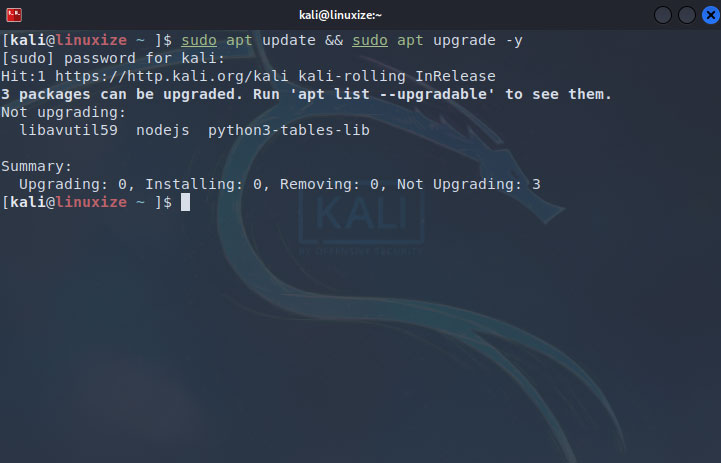
Before installing anything, refresh package lists:
sudo apt update && sudo apt upgrade -y
Install Flatpak on Kali Linux
Kali is Debian-based, so installation is straightforward:
sudo apt install flatpak -y
You can verify the installation:
flatpak --version
Example output:

Enable Flathub Repository
Flathub is the main source for Flatpak apps. Add it using:
flatpak remote-add --if-not-exists flathub https://flathub.org/repo/flathub.flatpakrepo
Reboot or Re-login (Recommended)
To ensure desktop integration works, run:
reboot
This mainly affects GNOME / KDE integration.
Install Flatpak Applications
Now you can install apps using:
flatpak install flathub <app-id>
Example – install Firefox
flatpak install flathub org.mozilla.firefox
Example – install Visual Studio Code
flatpak install flathub com.visualstudio.code
Example – install Spotify
flatpak install flathub com.spotify.Client
Once installed, apps appear in the Application Menu.
Running Flatpak Apps
Launch using:
flatpak run <app-id>
Example:
flatpak run org.mozilla.firefox
Optional: Enable GNOME/KDE Software Store Integration
If you want GUI installation via software center:
GNOME users:
sudo apt install gnome-software-plugin-flatpak -y
KDE users:
sudo apt install plasma-discover-backend-flatpak -y
Managing Flatpak Apps
List installed apps
flatpak list
Update everything
flatpak update
Remove an app
flatpak uninstall <app-id>
Example:
flatpak uninstall com.spotify.Client
Conclusion
Installing Flatpak on Kali Linux greatly expands app availability and allows users to install modern desktop software alongside security tools. With Flathub enabled, Kali becomes a much more flexible workstation environment — ideal for daily usage, development, and testing.
If you are looking for secure, sandboxed, cross-distribution, and up-to-date Linux applications, Flatpak is the way to go.